Before you start
Sign in to keep the flashcards in your account. Use material you have permission to use. Automatic generation uses your available allowance; check the status and any access requirements shown in the app.
Decide what one card should ask you to recall. Keep the source available so you can verify the answer.
1. Find the right place
On Home, choose “Manual input”. The editor opens on the front; existing cards can be opened through their card menu and edited.
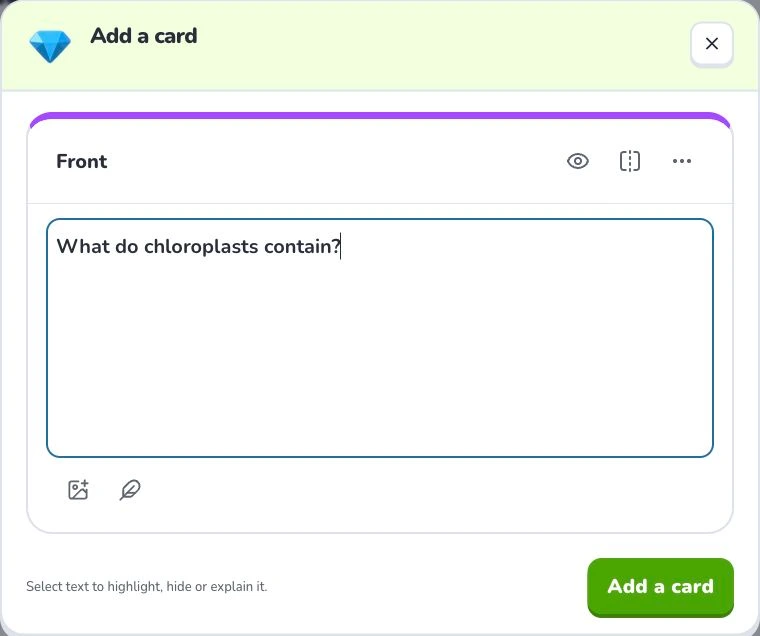
- 1
- Front content
- 2
- Notes
- 3
- Add a card
2. Prepare and choose
Write a specific question, switch to the back and add its answer. A question such as “What do chloroplasts contain?” is easier to judge than “Explain plants”. Use notes for context instead of hiding essential conditions from the question.
3. Check the settings
Use the front for one clear question and the back for its answer. Switch sides to check both. “Notes” holds extra context. Preview before saving. AI card tools are optional and may have separate allowance requirements; normal typing does not require using them.
4. Check the result
Preview both sides, save once and wait for confirmation. Reopen the card to check that the front, back and notes are correct. If saving fails, keep the draft and retry the save; do not create duplicate cards.
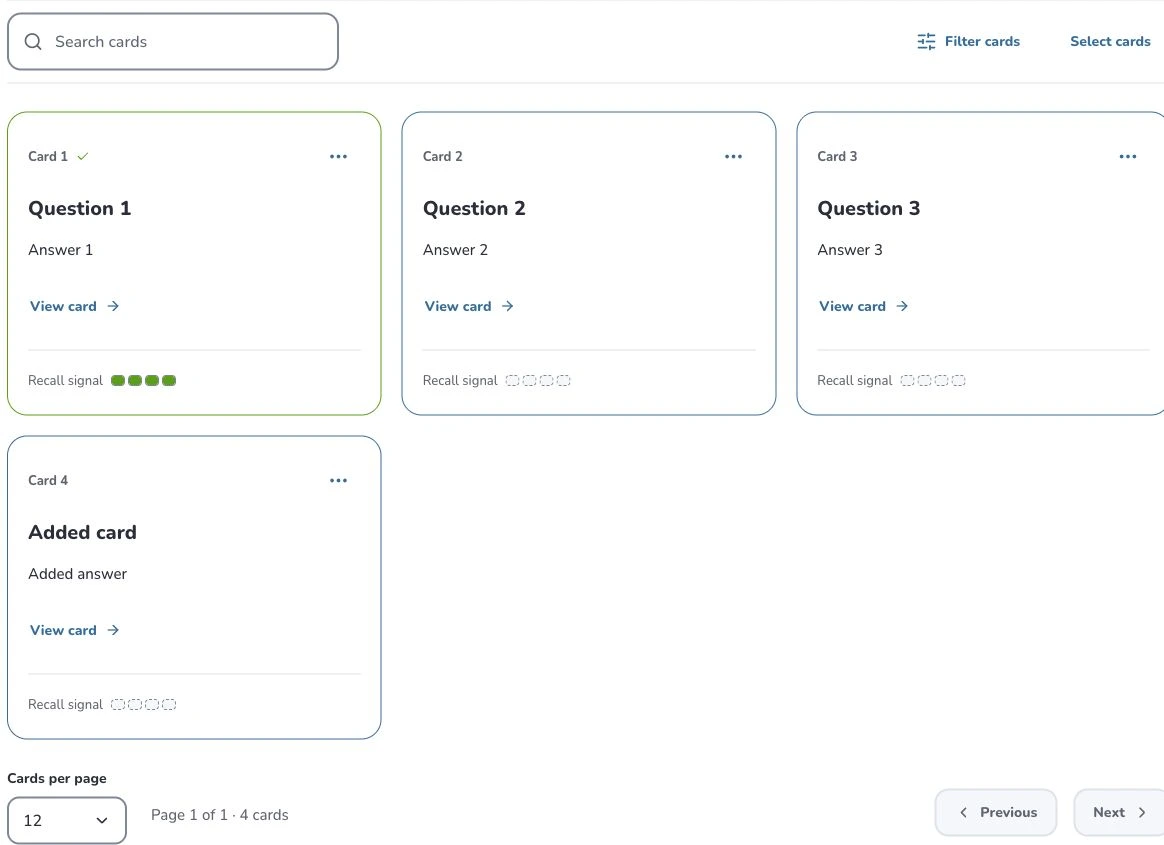
- 1
- Search cards
- 2
- Filter cards
- 3
- Card actions
Troubleshooting
A useful card needs enough context to have a clear answer. If an edit seems missing, check the active side and save state. Highlighting or hiding text is different from rewriting the underlying question.
What to learn next
Continue with these related Help Deckumi guides. Each uses the same web app and explains a different part of the workflow.