Before you start
Sign in to keep the flashcards in your account. Use material you have permission to use. Automatic generation uses your available allowance; check the status and any access requirements shown in the app.
Sign in to the account that owns your sets. The examples use demonstration cards; real set names remain exactly as their owner entered them.
1. Find the right place
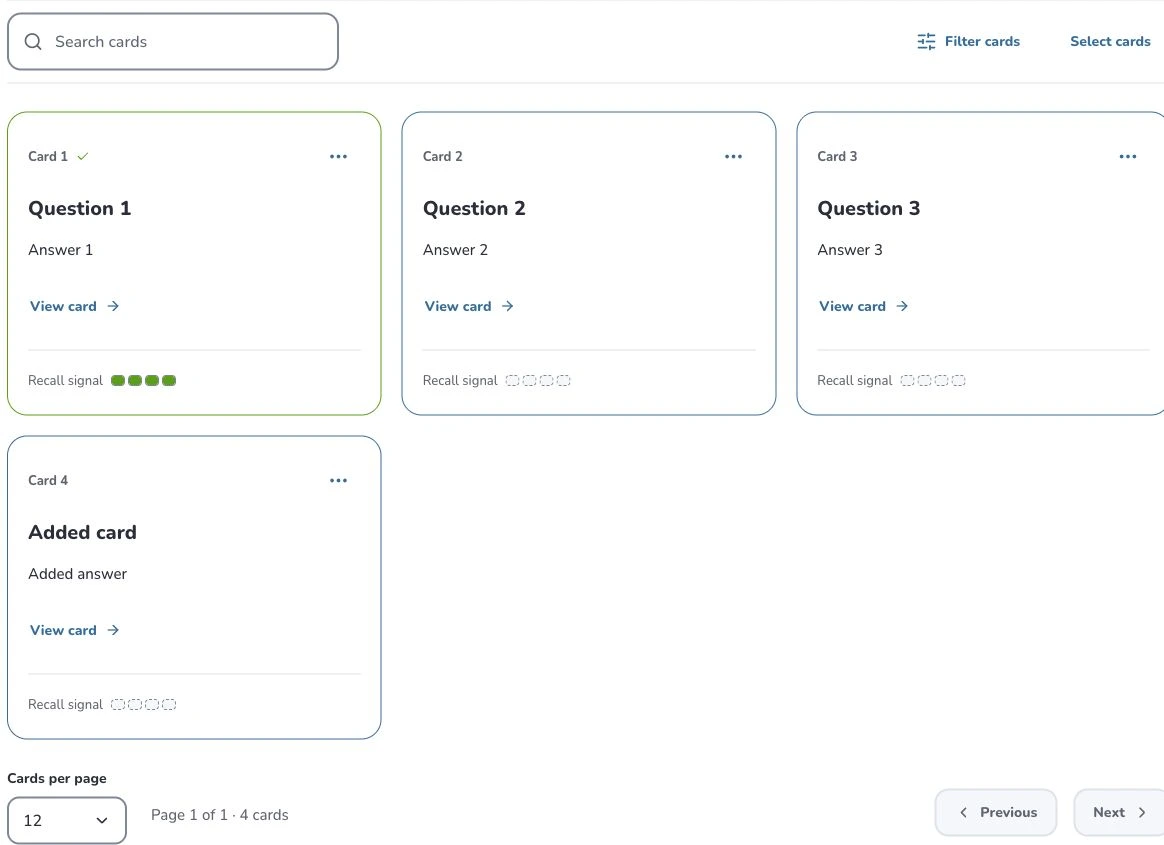
Open My flashcard sets and choose a set. Use its groups, or switch to “All flashcards” to search the set’s cards.
- 1
- Search cards
- 2
- Filter cards
- 3
- Card actions
2. Prepare and choose
Use “Search cards” for a word from a question or answer, and “Filter cards” to narrow the visible cards. The card menu opens memory details, editing and deletion. Check your selection before applying a batch action.
3. Check the settings
Search inside the current set to narrow its cards; use the sidebar search to find material across your library. Filters change what is displayed, while selecting cards enables batch actions. Check the current set, group and filter before assuming a card is missing.
4. Check the result
Open a card to verify its full content. Organize related cards into groups. Archive a set when you want it out of the active list but still recoverable; deleting a set or card is a separate permanent action.
- 1
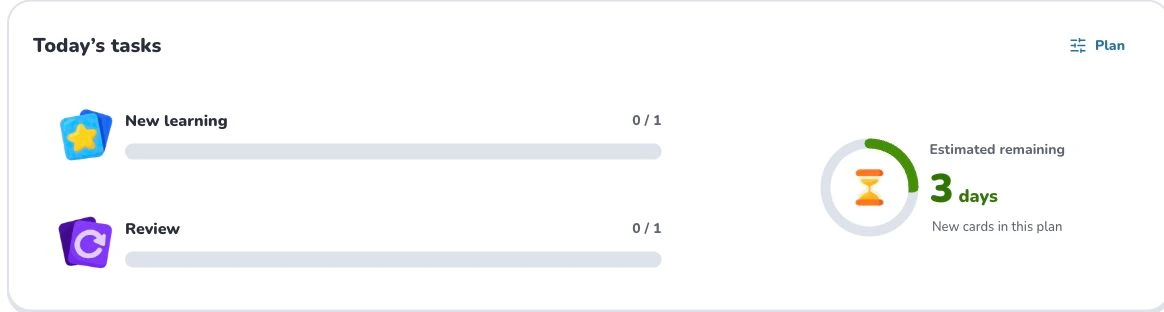
- Plan
- 2
- New learning
- 3
- Review
- 4
- New cards in this plan
Troubleshooting
Clear filters and check the archived-sets list before deciding content is missing. This Web view currently has no separate favorite control; use the available groups and search instead of assuming an unseen favorites button exists.
What to learn next
Continue with these related Help Deckumi guides. Each uses the same web app and explains a different part of the workflow.