Before you start
Sign in to keep the flashcards in your account. Use material you have permission to use. Automatic generation uses your available allowance; check the status and any access requirements shown in the app.
Start with one short topic you understand well enough to check. A few useful cards are a better first experiment than an entire course.
1. Find the right place
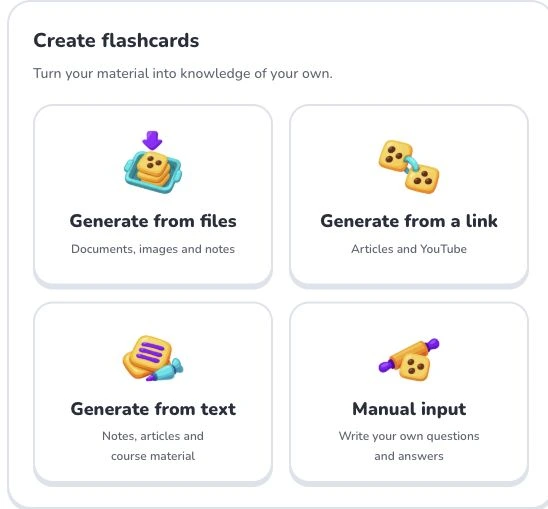
On Home, choose “Generate from files”, “Generate from a link”, “Generate from text” or “Manual input” to match your material. File and link generation are inputs to flashcards, not PDF or Word export commands.
- 1
- Generate from files
- 2
- Generate from a link
- 3
- Generate from text
- 4
- Manual input
2. Prepare and choose
Try a paragraph containing a definition and one important condition. Keep the source nearby. Check whether each generated question has one answer you can verify; split independent facts into separate cards.
3. Check the settings
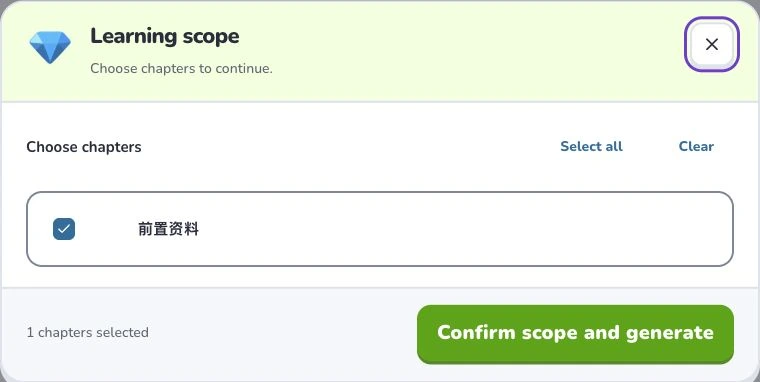
Choose “Output language”, then check your material before selecting “Continue”. Wait for the material to be organized. If a learning scope appears, select the sections you need and confirm that scope to generate. Uploading and parsing are preparation steps; they do not mean a finished flashcard set has been saved.
- 1
- Learning scope
- 2
- Select all
- 3
- Confirm scope and generate
4. Check the result
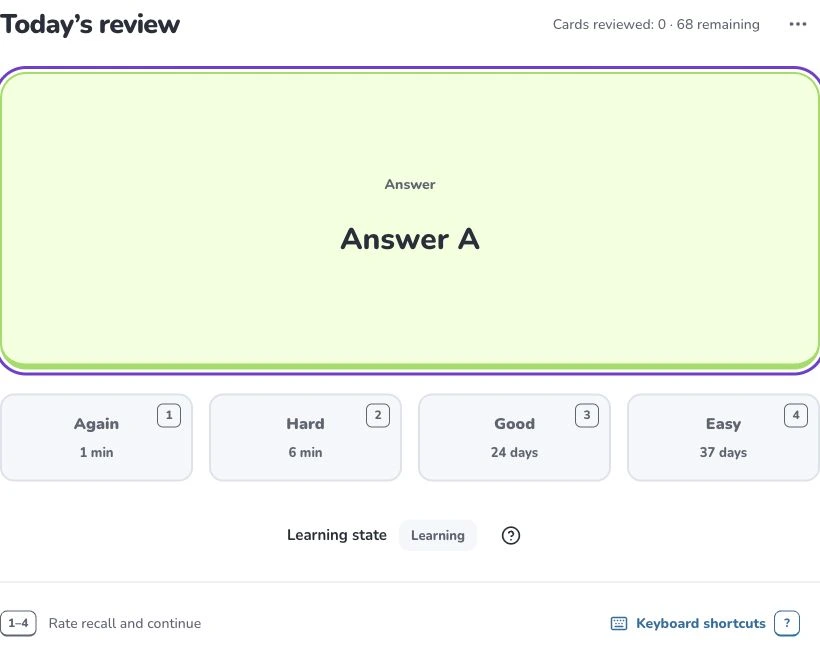
Open the saved set in your library. Read the questions, correct unclear wording and then set a learning plan for new cards. On later visits, Home’s due-review action reviews the cards due at that time across your sets.
- 1
- Today’s review
- 2
- Rate your recall
- 3
- Learning state
Troubleshooting
If the set is not visible, check the task’s save status and the account you signed in with. Do not submit the same material repeatedly while the existing task is still running.
What to learn next
Continue with these related Help Deckumi guides. Each uses the same web app and explains a different part of the workflow.