Before you start
Sign in to keep the flashcards in your account. Use material you have permission to use. Automatic generation uses your available allowance; check the status and any access requirements shown in the app.
Prepare a readable PDF you are allowed to use. A scan must have clear pages; blurry text and complex layouts can reduce extraction quality.
1. Find the right place
On Home, choose “Generate from files”. Select your PDF in the document window and check the displayed filename.
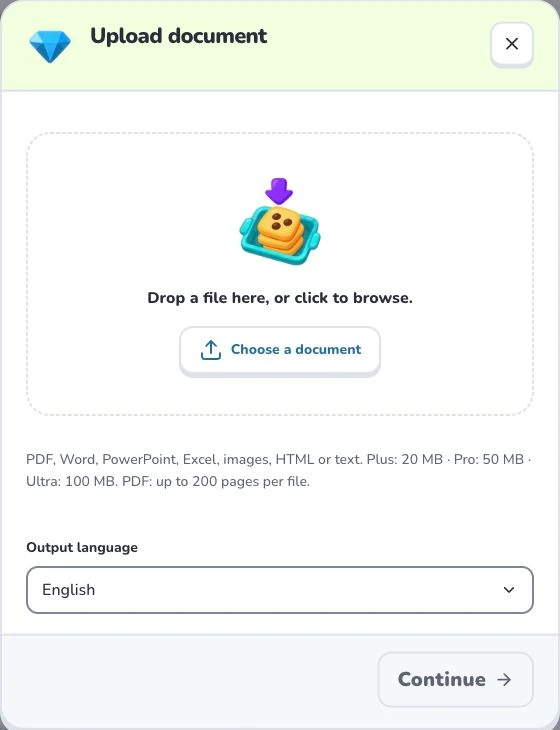
- 1
- Choose a document
- 2
- Output language
- 3
- Continue
2. Prepare and choose
Each PDF can contain up to 200 pages. File size also depends on your account’s displayed upload allowance. Split a longer PDF into meaningful parts before upload. Keep headings and page order so you can recognize the extracted sections.
3. Check the settings
Choose “Output language”, then check your material before selecting “Continue”. Wait for the material to be organized. If a learning scope appears, select the sections you need and confirm that scope to generate. Uploading and parsing are preparation steps; they do not mean a finished flashcard set has been saved.
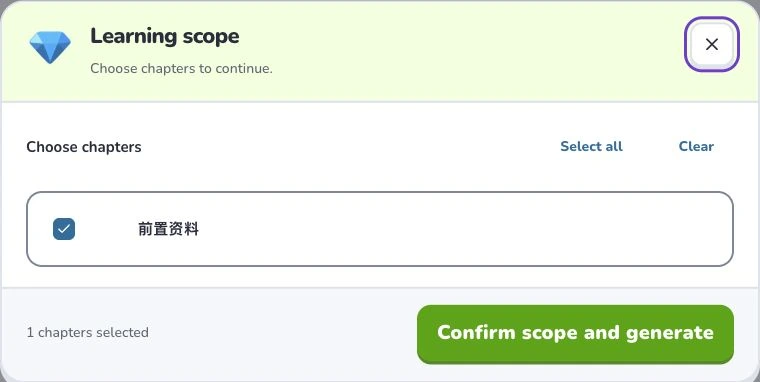
- 1
- Learning scope
- 2
- Select all
- 3
- Confirm scope and generate
4. Check the result
Select the relevant learning scope after processing, then compare the cards with the original pages. Check formulas, tables, units and exceptions especially carefully. Find the saved set in your library and correct mistakes before studying.
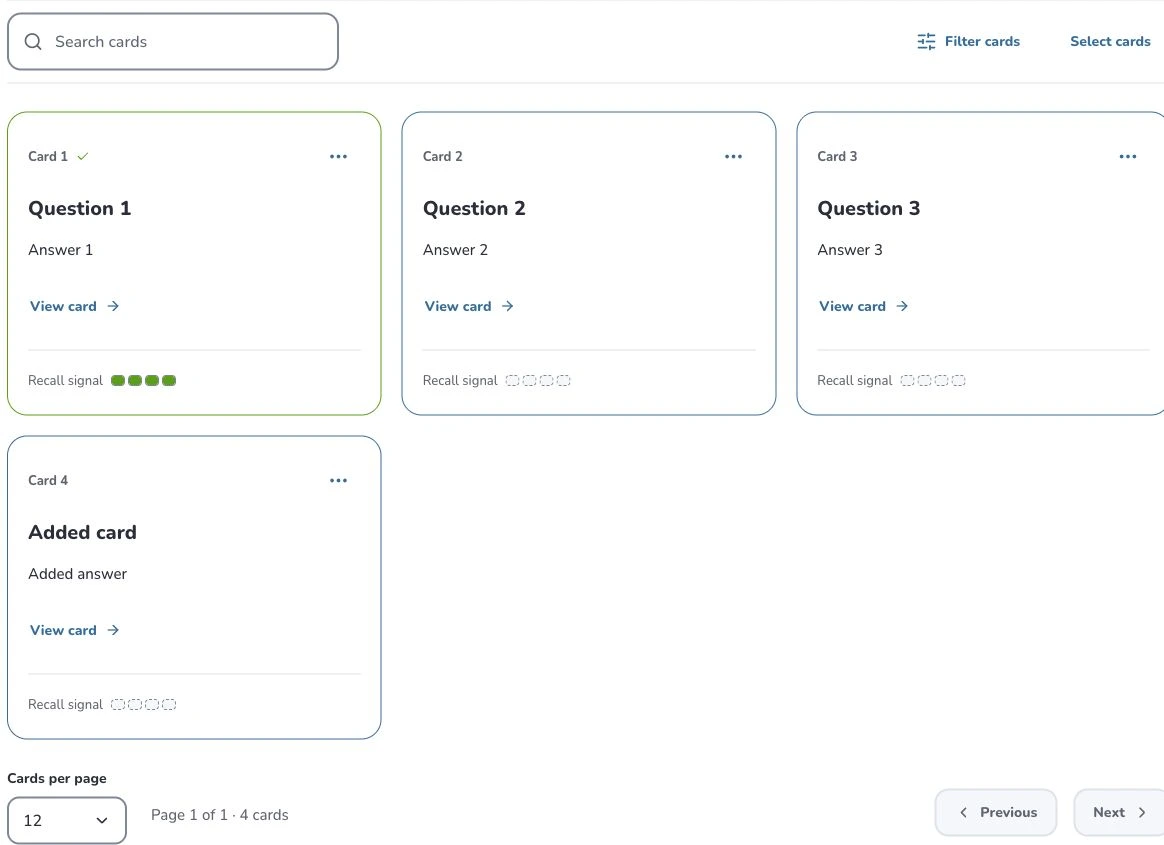
- 1
- Search cards
- 2
- Filter cards
- 3
- Card actions
Troubleshooting
For a rejected file, check both page count and file size. If extraction is poor, use a clearer scan or a text-based copy. A successful upload does not guarantee every page was understood correctly.
What to learn next
Continue with these related Help Deckumi guides. Each uses the same web app and explains a different part of the workflow.