Before you start
Sign in to keep the flashcards in your account. Use material you have permission to use. Automatic generation uses your available allowance; check the status and any access requirements shown in the app.
Prepare a supported .doc or .docx file. Preserve headings and meaningful paragraphs; remove comments or unrelated material you do not want included.
1. Find the right place
On Home, choose “Generate from files”, then select your Word document. This creates flashcards from the file; it does not convert flashcards into a Word download.
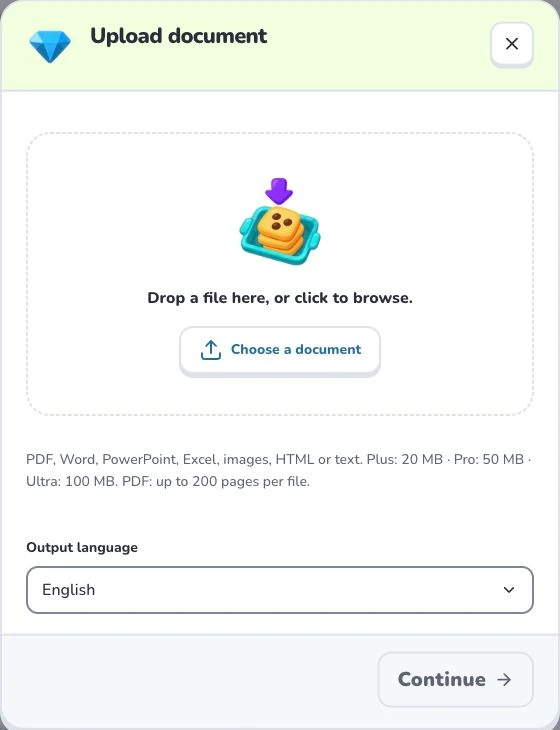
- 1
- Choose a document
- 2
- Output language
- 3
- Continue
2. Prepare and choose
Check the filename and the upload allowance shown for your account. Use descriptive headings and keep definitions with their conditions. Large documents are easier to verify when divided into related topics.
3. Check the settings
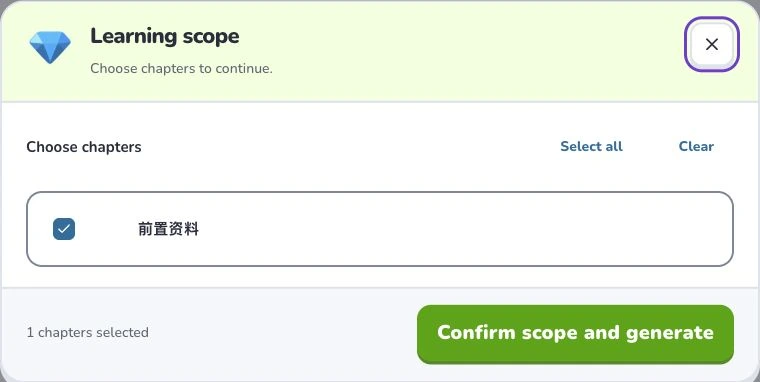
Choose “Output language”, then check your material before selecting “Continue”. Wait for the material to be organized. If a learning scope appears, select the sections you need and confirm that scope to generate. Uploading and parsing are preparation steps; they do not mean a finished flashcard set has been saved.
- 1
- Learning scope
- 2
- Select all
- 3
- Confirm scope and generate
4. Check the result
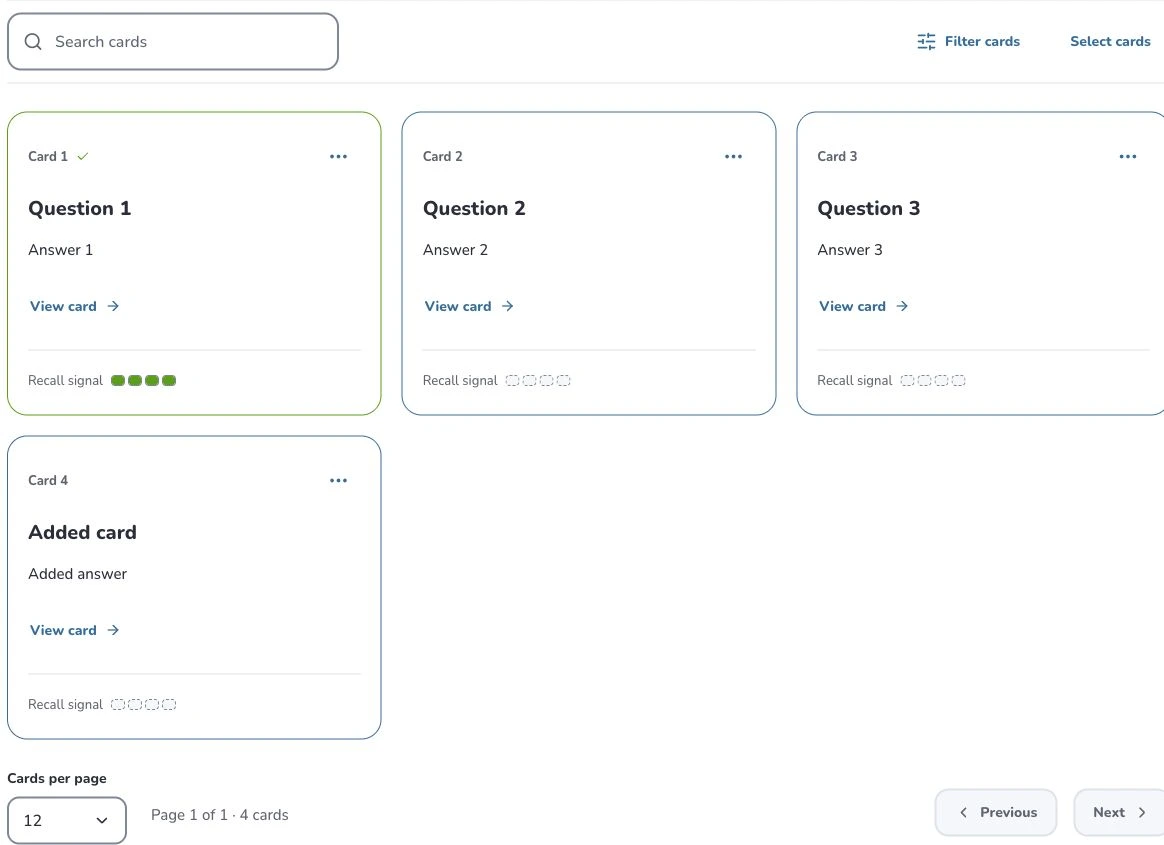
Check the extracted scope and generate only the sections you need. Compare each answer with the document, especially content inside tables or images. After the save succeeds, open the set from your library.
- 1
- Search cards
- 2
- Filter cards
- 3
- Card actions
Troubleshooting
If the format is rejected, choose a supported Word file rather than renaming an unrelated file to .docx. For unreadable content, use an accessible copy or paste the relevant text in the text workflow.
What to learn next
Continue with these related Help Deckumi guides. Each uses the same web app and explains a different part of the workflow.