Before you start
Sign in to keep the flashcards in your account. Use material you have permission to use. Automatic generation uses your available allowance; check the status and any access requirements shown in the app.
Keep complete definitions, numbers, units and exceptions. Remove unrelated subjects so the learning scope stays useful.
1. Find the right place
On Home, choose “Generate from text”. In the text window, place your notes in “Learning material”.
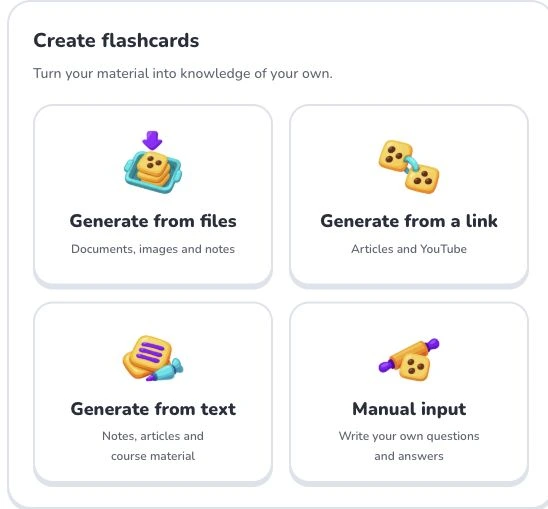
- 1
- Generate from files
- 2
- Generate from a link
- 3
- Generate from text
- 4
- Manual input
2. Prepare and choose
Paste up to 8,000 characters, including punctuation, spaces and line breaks. For longer notes, split by topic. For example, explain what chloroplasts contain and what photosynthesis converts, rather than pasting only isolated keywords.
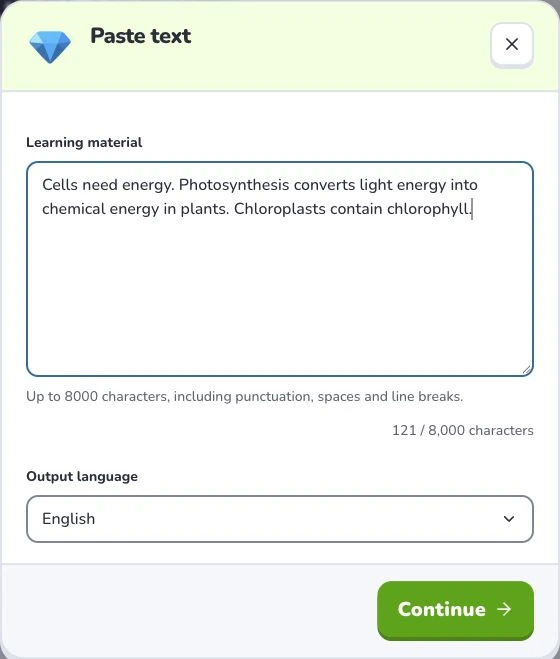
- 1
- Learning material
- 2
- Output language
- 3
- Continue
3. Check the settings
Choose “Output language”, then check your material before selecting “Continue”. Wait for the material to be organized. If a learning scope appears, select the sections you need and confirm that scope to generate. Uploading and parsing are preparation steps; they do not mean a finished flashcard set has been saved.
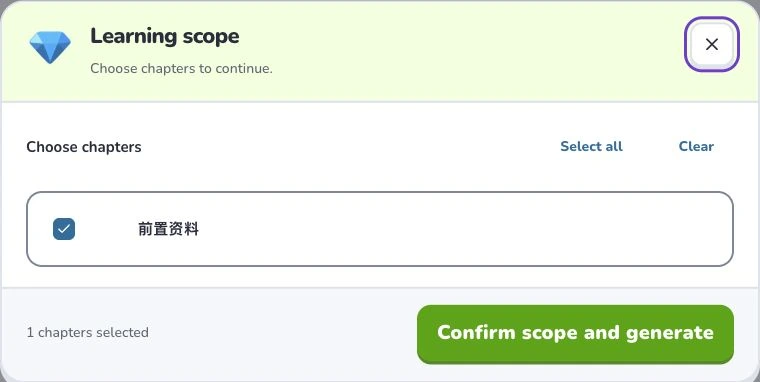
- 1
- Learning scope
- 2
- Select all
- 3
- Confirm scope and generate
4. Check the result
Check each question, answer and cloze against your notes. Keep the conditions that make an answer correct. Follow the task’s save status and open the resulting set; if saving fails, retry saving the existing result.
Troubleshooting
If “Continue” is disabled, check for empty material or too many characters and wait for account data to load. Removing text is enough to fix the limit; changing its font does not change the character count.
What to learn next
Continue with these related Help Deckumi guides. Each uses the same web app and explains a different part of the workflow.