Before you start
Sign in to keep the flashcards in your account. Use material you have permission to use. Automatic generation uses your available allowance; check the status and any access requirements shown in the app.
Use a public YouTube video and the video access required by your account. The input window shows a Pro requirement and a maximum duration of 60 minutes.
1. Find the right place
On Home, choose “Generate from a link”. Paste one YouTube video URL into “Source link”; the window changes to show video-specific guidance.
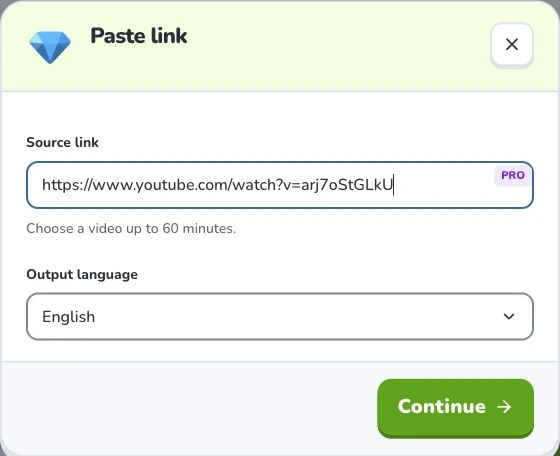
- 1
- Source link
- 2
- Output language
- 3
- Continue
2. Prepare and choose
Confirm the video and its duration, choose the output language and continue. Wait for processing, then check the learning scope when offered. Do not treat an accepted URL as proof that video analysis has finished.
3. Check the settings
Choose “Output language”, then check your material before selecting “Continue”. Wait for the material to be organized. If a learning scope appears, select the sections you need and confirm that scope to generate. Uploading and parsing are preparation steps; they do not mean a finished flashcard set has been saved.
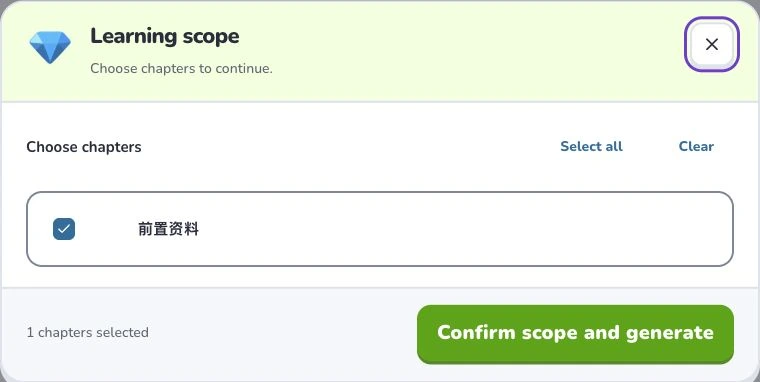
- 1
- Learning scope
- 2
- Select all
- 3
- Confirm scope and generate
4. Check the result
Check the saved cards and their video group. Source links open the video near the relevant passage; positions are approximate and playback starts a few seconds early to preserve context. Check the passage before correcting a card.
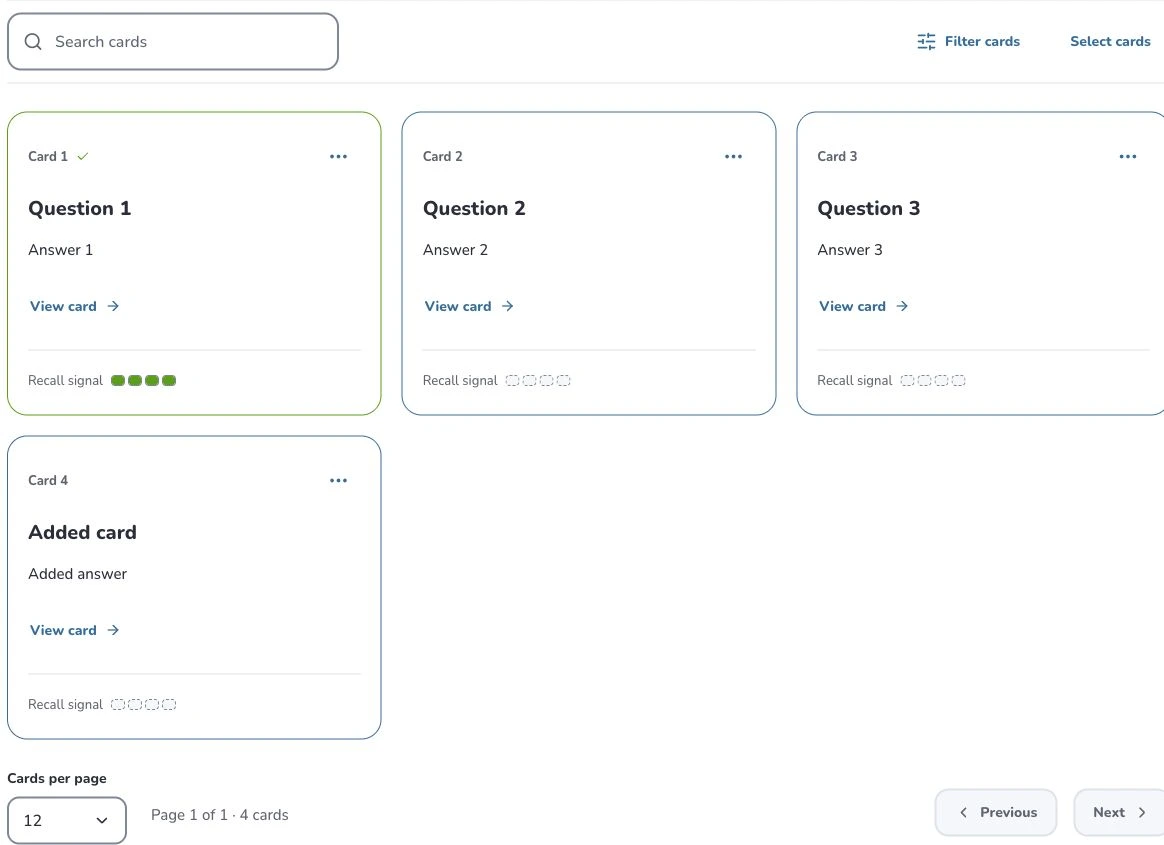
- 1
- Search cards
- 2
- Filter cards
- 3
- Card actions
Troubleshooting
Private, unavailable or unsupported videos may fail. Check access and duration first. If a task is already processing, open that task’s status rather than submitting the same video again.
What to learn next
Continue with these related Help Deckumi guides. Each uses the same web app and explains a different part of the workflow.