Before you start
Sign in to keep the flashcards in your account. Use material you have permission to use. Automatic generation uses your available allowance; check the status and any access requirements shown in the app.
Use one public article URL that you have permission to study. Sign-in walls, blocked pages and pages without readable article text can prevent import.
1. Find the right place
On Home, choose “Generate from a link” and paste the article URL into “Source link”.
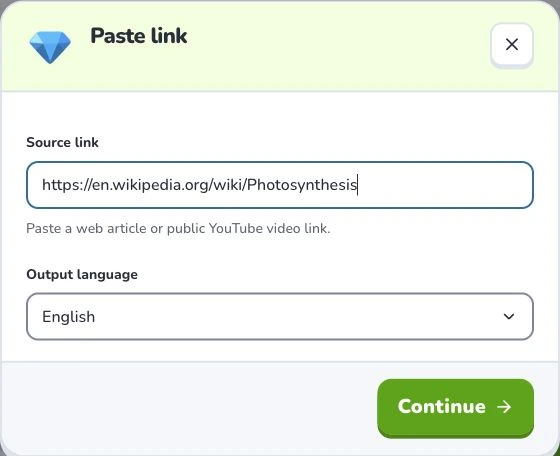
- 1
- Source link
- 2
- Output language
- 3
- Continue
2. Prepare and choose
Use the article’s direct address, not a search-results page. Check that the page contains the material you want, then choose the output language. A title or snippet alone is not a substitute for the full source.
3. Check the settings
Choose “Output language”, then check your material before selecting “Continue”. Wait for the material to be organized. If a learning scope appears, select the sections you need and confirm that scope to generate. Uploading and parsing are preparation steps; they do not mean a finished flashcard set has been saved.
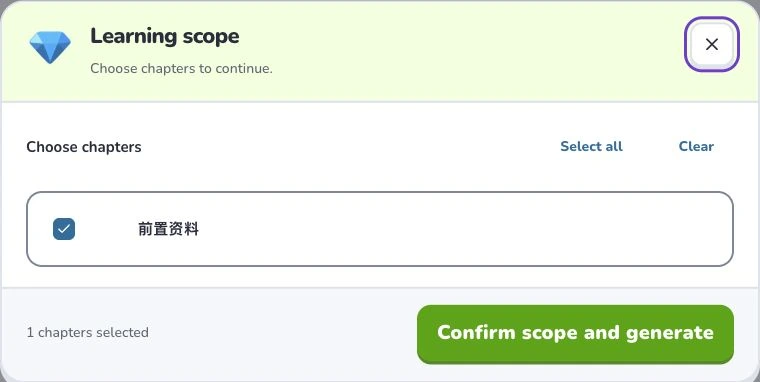
- 1
- Learning scope
- 2
- Select all
- 3
- Confirm scope and generate
4. Check the result
Check the extracted learning scope before generation. Compare the cards with the article and keep qualifications that affect the answers. Find the saved set in your library after the task confirms saving.
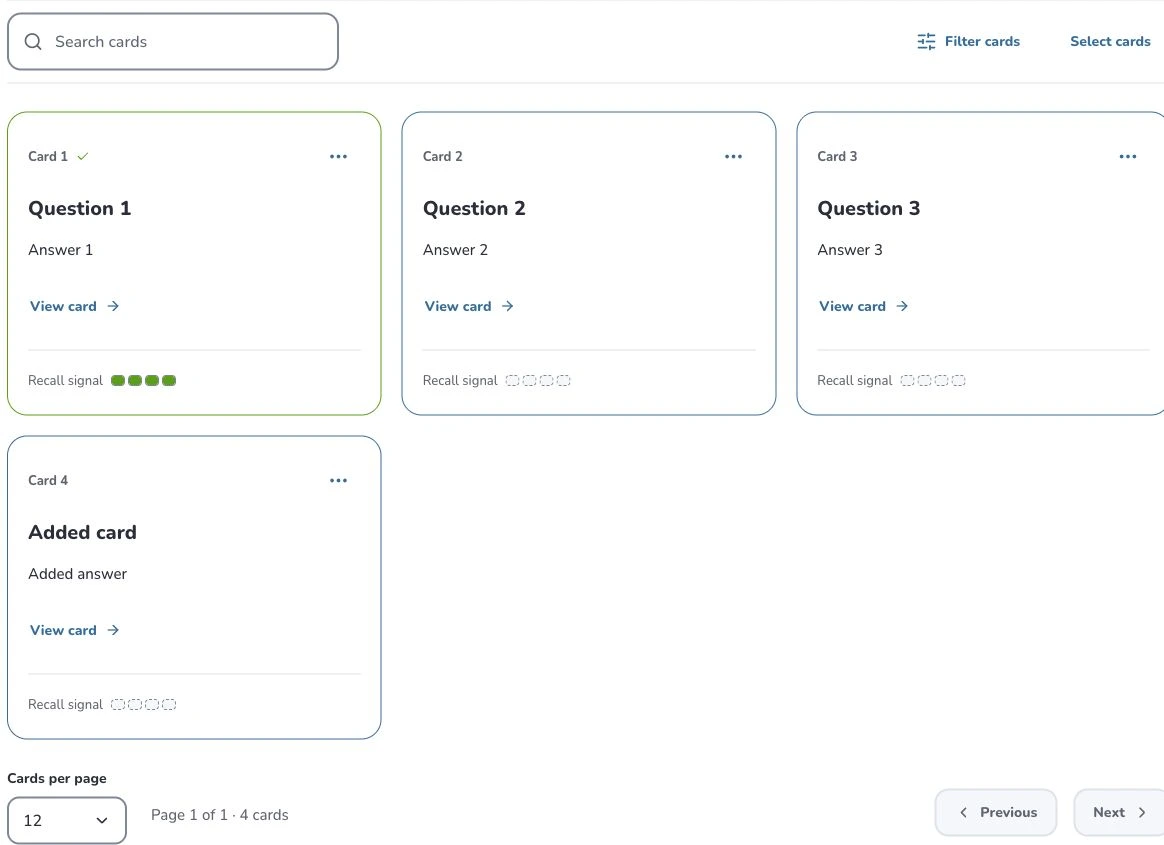
- 1
- Search cards
- 2
- Filter cards
- 3
- Card actions
Troubleshooting
If the page cannot be read, check that it is public and accessible. You can paste text you are allowed to use or upload a supported document instead. Do not repeatedly retry an access-restricted URL.
What to learn next
Continue with these related Help Deckumi guides. Each uses the same web app and explains a different part of the workflow.